Paychex Flex Login – Employee Sign Up, Pay Stubs, W-2 & Password Help
Paychex Flex is the online payroll and HR platform from Paychex, used by hundreds of thousands of small and mid-sized U.S. businesses. If your employer uses Paychex, you’ll log in to Paychex Flex to see pay stubs, download W-2s, update direct deposit and manage benefits. This guide covers signing up, logging in and resetting your login.
Paychex Flex Login – Quick Information
| Official login | paychexflex.com (or paychex.com → Login) |
| You need | Username, password and a one-time passcode sent to your phone or email |
| Mobile app | Paychex Flex (App Store & Google Play) |
| Employee support | 800-741-6277 (Paychex Flex employee support) |
| Also check with | Your company’s payroll or HR contact |
Get the official app – Paychex Flex: App Store · Google Play
What You Need to Log In
- Your Paychex Flex username and password
- Access to the phone or email on your account, for one-time passcodes
- For sign-up or password resets, possibly your date of birth, the last four digits of your SSN and your security answers
How to Sign Up for Paychex Flex (New Employees)
- Check with your employer that Paychex Flex access has been set up for you. You can’t register until they have done this.
- Go to paychexflex.com and choose the option to sign up as a new user.
- Enter the personal details Paychex asks for so it can match you to your employer’s payroll records.
- Create your username and password, and add your phone number and email for passcodes.
- Set up your security questions and finish registration.
How to Log In to Paychex Flex
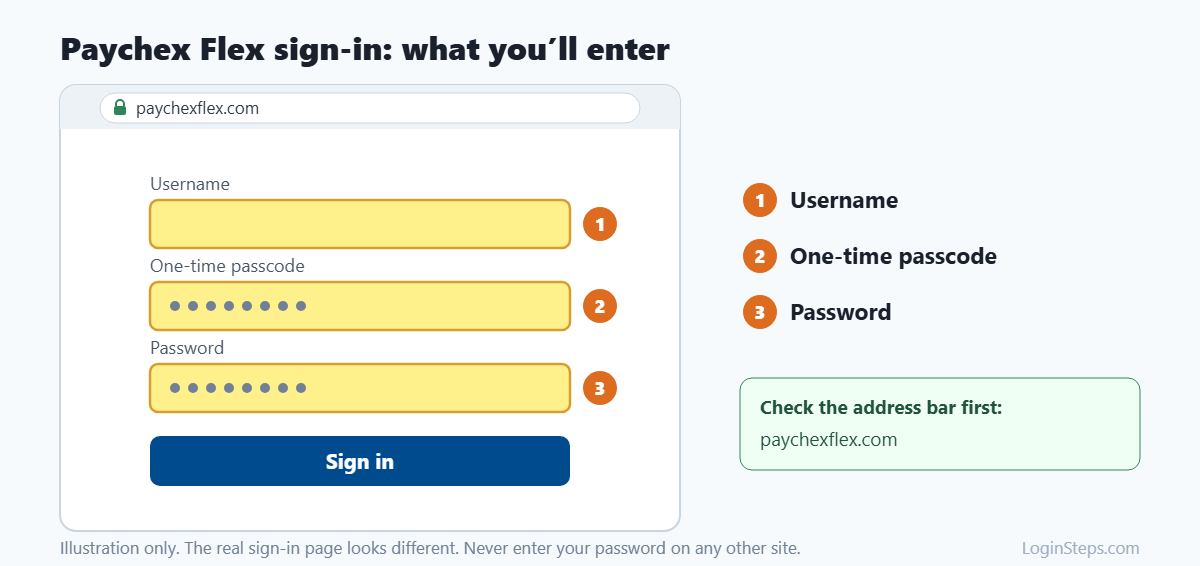
- Go to paychexflex.com, or open the Paychex Flex app.
- Enter your username and click Continue.
- Choose where to get your one-time passcode (text or email) and enter it.
- Enter your password and sign in.
Tip: Stuck on the login page? Click the blue ? button at the bottom right to open the Paychex Login Assistant.
How to View Your Pay Stub and W-2
- Log in to Paychex Flex.
- Open the Pay area to see your paychecks and download pay stubs.
- Look for your W-2 in the tax documents area. Employers must send W-2s by January 31.
Can’t find your W-2? Paychex has a W-2 help page for employees, or you can ask your employer’s payroll contact.
Forgot Your Username or Password?
Forgot username:
- On paychexflex.com, click Forgot Username.
- Enter the email address on your account.
- Choose to get your username by text or email.
Forgot password:
- Click Forgot Password.
- Enter your username and the phone number or email on your account.
- Enter the one-time passcode. You may also be asked for your date of birth, the last four digits of your SSN or your security answers.
- Create a new password.
Still stuck? Call Paychex Flex employee support at 800-741-6277.
Looking for your W-2? See our step-by-step guide: How to get your W-2 from Paychex.
Frequently Asked Questions
What is the official Paychex Flex login page?
Use paychexflex.com or the Login button on paychex.com. Don’t enter your details on any other website.
Can employees call Paychex directly?
Yes. For Paychex Flex login help, employees can call 800-741-6277. For pay questions, like missing hours or wrong deductions, contact your employer.
Is there a Paychex Flex app?
Yes. The free Paychex Flex app is on the Apple App Store and Google Play.
What is Paychex Oasis?
Paychex Oasis is a separate Paychex service with its own login and support line. If your pay stubs mention Oasis, follow your employer’s Oasis instructions instead.
How do former employees get a W-2?
Try logging in to Paychex Flex first. If you no longer have access, contact your former employer’s payroll team.
Conclusion
Log in at paychexflex.com or in the Paychex Flex app with your username, password and one-time passcode. For login problems, use the Login Assistant or call Paychex Flex employee support.
Related guides: ADP Login · Paycom Login · UKG Pro Login
LoginSteps is an independent guide and is not affiliated with Paychex. We never ask for your login details. Always sign in only on the official Paychex Flex website or app. Read our disclaimer.