Gusto Login – Employee Sign-In, Paystubs, W-2 & Account Setup Guide
Gusto is a payroll, benefits and HR platform used by many small businesses. If your employer pays you through Gusto, you’ll use it to view paystubs, download your W-2, update direct deposit and manage your tax withholding. This guide covers setting up your account, signing in and fixing login problems.
Gusto Login – Quick Information
| Official login | app.gusto.com/login |
| You need | Your personal email, password and a 2-step verification code (or passkey) |
| Mobile app | Gusto Mobile (App Store & Google Play) |
| Former employees | Keep access to your Gusto profile, pay records and tax documents |
| Help | Gusto Help Center or your employer’s Gusto admin |
Get the official app – Gusto Mobile: App Store · Google Play
How to Set Up Your Gusto Account (New Employees)
- Your employer adds you to Gusto, and you get a welcome email from Gusto.
- Click the link in the email and create your password.
- Enter your personal details: legal name, SSN, date of birth and home address.
- Complete your tax withholding (W-4) and employment eligibility (I-9) information.
- Add your direct deposit details and sign the required forms electronically.
- Once your company admin approves your account, you can see your pay and documents.
Tip: Only follow a Gusto welcome email your employer told you to expect. When in doubt, go straight to app.gusto.com instead of clicking links in emails.
How to Log In to Gusto
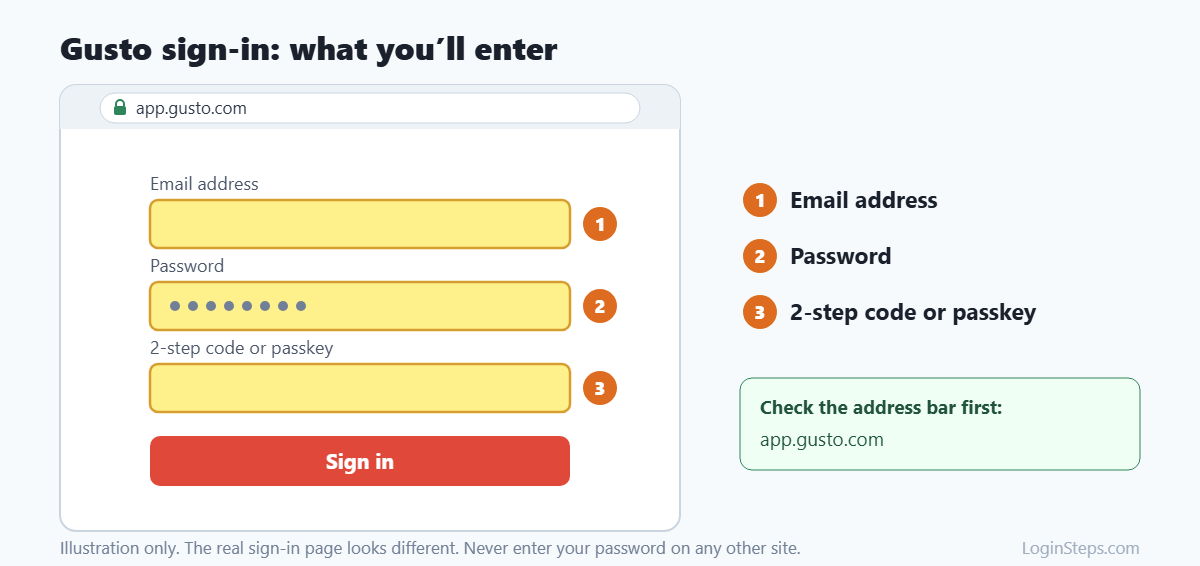
- Go to app.gusto.com/login, or open the Gusto Mobile app.
- Enter the email address and password on your account.
- Complete the CAPTCHA check if it appears.
- Enter your 2-step verification code (sent by text or from an authenticator app), or use a passkey with Face ID or Touch ID.
- Signing in on a new device? Gusto may email you a link to approve it.
How to View Your Paystubs and W-2
- Sign in to Gusto.
- Go to your paystubs to view or download each pay period.
- Open your payroll and year-end forms (documents) to download your W-2.
W-2s must be available by January 31. Former employees can still sign in and download them.
Forgot Your Password or Email?
Forgot password: On the login page, click Forgot password. Gusto emails you a reset link.
Forgot which email you used: Use the Forgot email tool. You’ll confirm your identity with your 2-step verification phone number or by answering verification questions.
Account locked? After too many wrong passwords, Gusto locks your account and sends an Unlock My Account email. Unlock it, then reset your password.
Looking for your W-2? See our step-by-step guide: How to get your W-2 from Gusto.
Frequently Asked Questions
What is the official Gusto login page?
It’s app.gusto.com/login. Don’t enter your details on any other site.
Can I still access Gusto after leaving my job?
Yes. Gusto says people who were paid through Gusto keep access to their profile and pay records, including tax documents, after they leave.
Is there a Gusto app for employees?
Yes. The Gusto Mobile app is on iPhone and Android and uses the same sign-in and 2-step verification.
Who do I contact about wrong pay or missing hours?
Contact your employer. Gusto runs payroll, but your employer decides your pay, hours and deductions.
Conclusion
Set up your account from Gusto’s welcome email, then sign in at app.gusto.com or in the Gusto Mobile app with your email, password and 2-step verification. Your paystubs and W-2s stay available even after you leave.
Related guides: Paychex Flex Login · Paylocity Login · ADP Login
LoginSteps is an independent guide and is not affiliated with Gusto. We never ask for your login details. Always sign in only on the official Gusto website or app. Read our disclaimer.