UKG Pro Login – UltiPro Employee Access, Kronos, App & Access Code Guide
UKG (Ultimate Kronos Group) makes HR, payroll and timekeeping software used by thousands of employers. Depending on your company, you may know it as UKG Pro (formerly UltiPro) or as a Kronos timeclock. This guide explains how to find your login, use the UKG Pro app and fix common sign-in problems.
UKG Pro Login – Quick Information
| Official login | A company-specific link from your employer (often on ultipro.com or ukg.com) |
| You need | Username and password, or your work single sign-on (SSO) |
| Mobile app | UKG Pro (App Store & Google Play), which needs a company access code |
| Extra security | Many companies turn on multifactor authentication (MFA) |
| Help | Your company’s HR, payroll or UKG system administrator |
Get the official app – UKG Pro: App Store · Google Play
Important: There’s no single public UKG Pro login page for every employee. Each employer has its own link and access code. Get them from your employer, not from a search ad or a look-alike website.
Which UKG Product Does Your Employer Use?
- UKG Pro (formerly UltiPro): HR and payroll, including pay stubs, W-2s, benefits and personal details
- UKG Pro Workforce Management (formerly UKG Dimensions and Kronos Workforce Central): schedules, timecards and time-off requests
- UKG Ready (formerly Kronos Workforce Ready): an all-in-one HR, payroll and timekeeping tool used by smaller companies
Your onboarding email or HR team will tell you which one you use and give you the right link.
What You Need to Log In
- Your company’s UKG login link (for the web) or company access code (for the app)
- Your username and password, or your work email if your company uses SSO
- Your MFA device, if your company requires it
How to Log In to UKG Pro on the Web
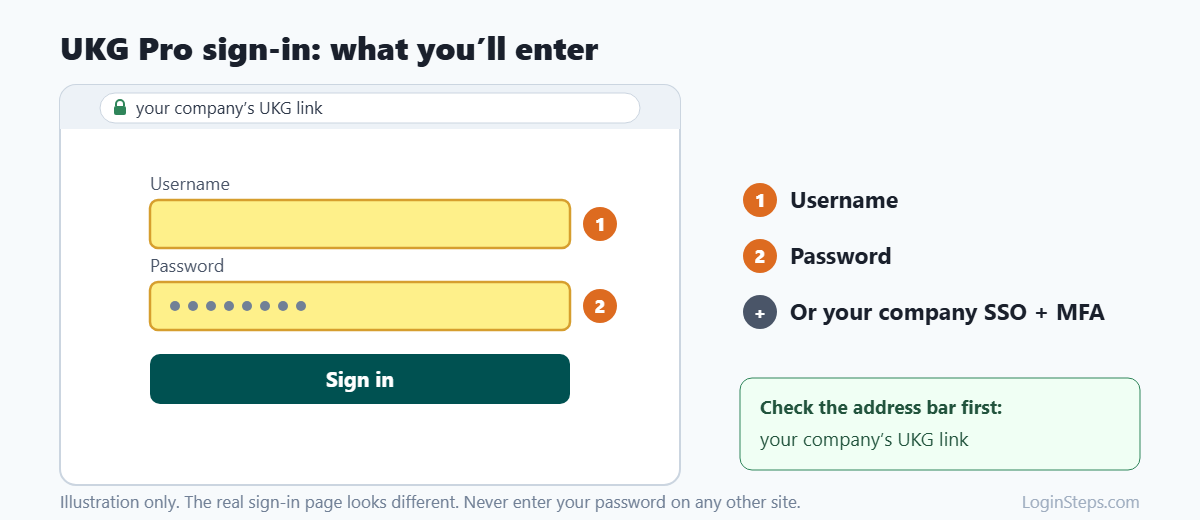
- Open the UKG Pro link your employer gave you. Bookmark it for next time.
- Check that the address bar shows your employer’s UKG address, usually ending in ultipro.com or ukg.com.
- Enter your username and password, or choose your company’s single sign-on option.
- Complete MFA if you’re asked to.
- You’ll land on your UKG Pro home page.
How to Set Up the UKG Pro App
- Download the free UKG Pro app from the App Store or Google Play. Check that the publisher is UKG.
- Open the app and enter your company access code.
- Choose Sign in with password or Sign in with SSO, depending on how your company set it up.
- Sign in with the same details you use on the web.
Can’t find your access code? Check your onboarding email. If you can already sign in on the web, open your user account menu and look for the mobile app instructions. Otherwise, ask HR.
How to View Your Pay Stub and W-2
- Sign in to UKG Pro on the web or in the app.
- Open the Pay or My Pay section to see current and past pay statements.
- Look for W-2 or tax documents in the same area to download your W-2.
Menu names can vary slightly depending on how your employer has set up UKG.
Forgot Your Password or Locked Out?
- On the UKG login page, click Forgot my password (or Forgot your password?).
- Follow the prompts to confirm your identity.
- Create a new password and sign in again.
- If your company uses SSO, reset your password through your work account instead. You may need to be on your company’s network or VPN.
- Still locked out? Contact your HR team or UKG administrator.
Looking for your W-2? See our step-by-step guide: How to get your W-2 from UKG.
Frequently Asked Questions
Is UltiPro the same as UKG Pro?
Yes. UltiPro was renamed UKG Pro after Ultimate Software and Kronos merged to form UKG.
Where do I find my UKG company access code?
Your employer provides it, usually in an onboarding email. You can also find it in the mobile app instructions under your user account menu in UKG Pro on the web.
Can I call UKG for help with my login?
UKG supports its client companies, not individual employees. Your HR team or UKG system administrator can reset your access.
Is Kronos still used?
Many companies still call their timeclock “Kronos,” but the products now carry UKG names, like UKG Pro Workforce Management and UKG Ready.
What devices does the UKG Pro app support?
The app works on iPhone, iPad and Android phones and tablets.
Conclusion
Use the UKG link and access code your employer gave you, and sign in with your username and password or your company’s SSO. For access problems, contact your HR team or UKG administrator.
Related guides: Paycom Login · ADP Login · Paylocity Login
LoginSteps is an independent guide and is not affiliated with UKG. We never ask for your login details. Always sign in only on the official link from your employer or the official UKG Pro app. Read our disclaimer.